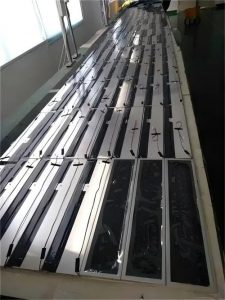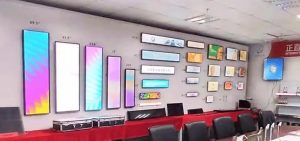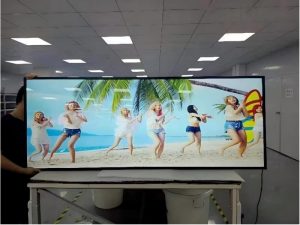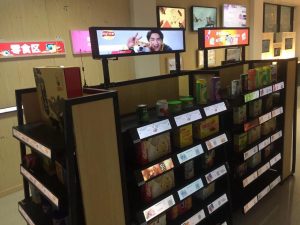

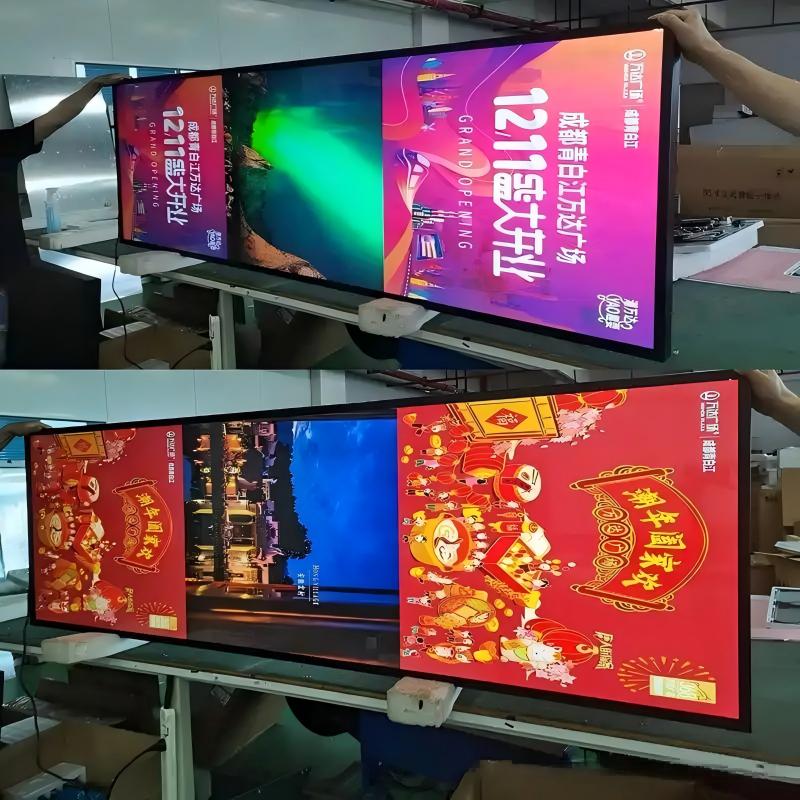
Freestanding stretched digital signage kiosks (often deployed as digital A-frame menu boards or welcome totems) are situated at storefront entrances, checkout counters, and hotel lobbies. Operating ten to sixteen hours a day amidst heavy foot traffic, they endure airborne dust, customer fingerprints, aerosolized kitchen oils, and accidental physical bumps. Many owners find their kiosks performing well initially, only to complain after a year or two about dimmed screens, surface smudges, or intermittent blackouts.
In reality, the majority of these operational issues are directly linked to maintenance practices. Below is a structured guide detailing how to care for your display kiosks across three tiers: daily routine, preventive operational habits, and professional servicing.
1. Daily Surface Cleaning: Simple but Frequently Done Incorrectly
The optical screen face is the most frequently touched surface, constantly gathering fingerprints, dust, and beverage splashes. Observe several golden rules when cleaning:
Always Disconnect Power First: Power down the kiosk and unplug the electrical cord. Allow the screen to cool completely before cleaning. This guarantees electrical safety and makes surface smudges far easier to see.
Wipe Gently in One Direction with Soft Microfiber: Use a dedicated microfiber cloth, gently wiping across the surface in a single uniform direction. For stubborn smudges, slightly dampen the cloth with clean water—wringing it until practically dry—before wiping. Never spray water or cleaning fluids directly onto the glass face or bezel edges, as capillary action can draw liquids into internal driver electronics and cause catastrophic shorts.
Strictly Avoid Abrasive or Harsh Chemical Solvents: Never use cleaners containing alcohol, ammonia, acetone, or abrasive compounds, and avoid paper towels, coarse rags, or sharp scrapers that permanently scratch polarizing films. Refer to your product manual for approved cleaning agents.
Clean Chassis Enclosures and Ventilation Ports: Wipe metal housings with a soft cloth. Clear dust buildup from rear thermal vents using a soft-bristled brush or low-pressure air blower. Avoid using high-powered industrial vacuum nozzles directly against delicate internal vent grilles.
2. Sound Operational Habits: Daily Practices That Prevent Future Breakdowns
Many hardware malfunctions stem from improper day-to-day operating habits.
Avoid Static Image Retention: Displaying a frozen graphic layout for days on end can induce image persistence (ghosting) on liquid crystal subpixels. Utilize rotating playlists or dynamic motion sequences to equalize pixel duty cycles.
Automate Power Schedules: Power down displays after business hours to conserve electricity and allow backlight LEDs and power inverters to rest. Utilizing digital signage CMS software enables automated timer schedules, removing reliance on manual staff intervention.
Avoid Running at Maximum Luminance Permanently: Operating at 100% brightness continuously accelerates thermal buildup and LED aging. Calibrate screen brightness to ambient in-store lighting for comfortable, energy-efficient viewing.
Avoid Forcible Hard Power Pulls: Always initiate proper software shutdowns rather than yanking the power cord or tripping circuit breakers. Abrupt power cuts can corrupt system storage files and damage power regulation circuits.
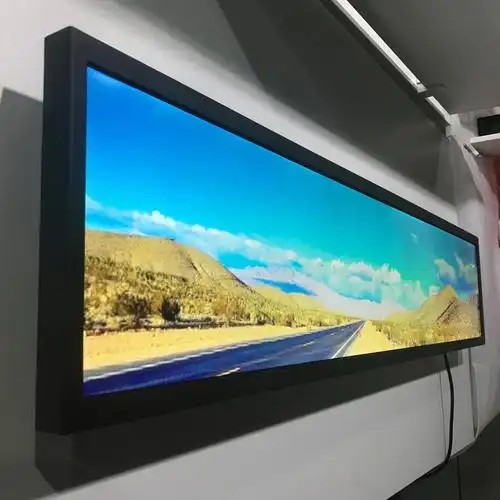
3. Environmental Placement: A Protected Environment Eliminates Half the Problems
Because freestanding digital signage kiosks stand openly on floor surfaces, their immediate surroundings heavily dictate equipment lifespan.
Shield from Direct Sunlight and Industrial Heat: Solar radiation drives up internal panel temperatures and causes glare wash-out. Avoid placing kiosks directly adjacent to HVAC vents, radiators, or commercial kitchen cooking zones where heat and airborne grease create heavy thermal insulation.
Maintain Adequate Ventilation Clearance: Ensure rear and side thermal grilles are never obstructed or pressed flush against solid walls, preserving convective cooling channels.
Guard Against Floor Moisture and Cleaning Runoff: Floor mopping, rainy-day customer runoff, and entryway dampness pose liquid hazards. Ensure the kiosk base is stable and elevated, deploying protective rubber dampening pads where appropriate to keep the electrical base clear of water pooling.
Ensure Mechanical Stability in High-Traffic Thoroughfares: Freestanding kiosks have an elevated center of gravity. Position them away from the immediate center of crowded doorways, anchoring the base securely to prevent accidental toppling from shopper impacts.
4. Cabling and Electrical Infrastructure: Frequently Overlooked Hazards
Power cords and communication cables must be neatly routed within protective rubber floor raceways to prevent tripping, crushing, or cable pinching. Loose terminal plugs cause screen flickering, intermittent blackouts, or signal loss, so inspect connector tightness periodically.
Connect kiosks to dedicated, surge-protected commercial electrical circuits, avoiding daisy-chaining with heavy refrigeration compressors that cause severe voltage sag. During severe lightning storms or extended business closures, disconnect primary power.
5. Monthly Preventive Checkups: Investing Five Minutes Proactively
A brief monthly inspection catches minor issues before they escalate: inspect the screen for stuck pixels, dead lines, or luminance non-uniformity; listen for abnormal coil whining or component smells during boot-up; verify the physical stability of mounting brackets and base fasteners; clear dust from thermal vents; and verify smooth, uncorrupted video playback.
6. Software Maintenance and Media Asset Optimization
Hardware longevity depends on software health. System lag and playback stutter often stem from fragmented storage or software conflicts.
Maintain digital signage CMS software, periodically clearing expired media files and cached playlists to keep internal flash storage unburdened. Always produce creative media assets formatted strictly to the display’s native pixel resolution; mismatched formats increase processor decoding overhead and risk visual stretching.
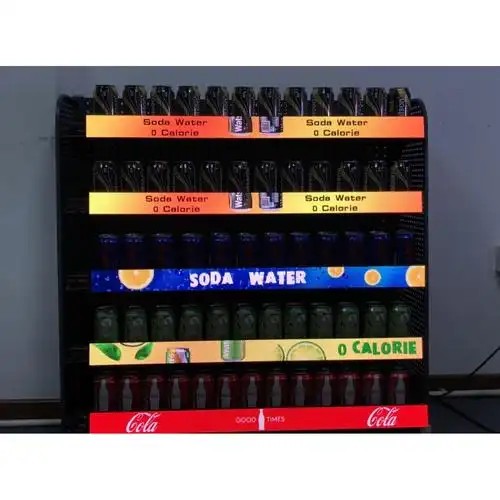
For networked multi-kiosk deployments, periodically audit cloud CMS connection logs to catch offline units proactively before customers notice.
7. Professional Servicing: When to Call Certified Engineers
While daily cleaning and basic checkups can be performed on-site, immediately engage professional service engineers under the following circumstances:
Large-scale screen artifacts, persistent vertical/horizontal lines, or localized light bleeding; failure to boot or recurring reboot loops; burning odors, smoke, or abnormal chassis heating; physical damage following liquid spills or heavy impacts; or internal chassis disassembly for deep dust removal or power supply replacement.
Commercial displays house high-voltage inverters and delicate ribbon cables. Unauthorized disassembly risks severe electrical shock, physical damage, and warranty forfeiture. Contact certified manufacturer technicians for internal repairs.
For kiosks operating continuously over multiple years, schedule periodic professional internal cleaning and hardware calibration based on site operating conditions.
Frequently Asked Questions (FAQ)
Can wet wipes or commercial disinfectant wipes be used to clean the screen? It is not advised. Commercial wet wipes frequently contain alcohol, bleach, or harsh surfactants that strip the display’s anti-glare optical coatings. Use a soft, dry microfiber cloth, lightly dampened with clean water only when necessary.
Should digital signage kiosks be powered down every night? Yes, highly recommended. Shutting down after operating hours conserves power, dissipates residual heat, and allows backlight diodes to rest, significantly extending operating life.
What should be done if image ghosting occurs on screen? Switch the display to full-motion video playback or power down the unit for several hours. This typically dissipates residual liquid crystal alignment. If persistence remains, contact your supplier.
How often should professional servicing be scheduled? Service intervals depend on operating hours and environment. For standard indoor environments, an annual professional inspection is standard; for high-dust or greasy dining spaces, semi-annual inspections are recommended.
Conclusion
Maintaining an HD stretched full-screen digital signage kiosk centers on three pillars: disciplined cleaning methods, a protected operating environment, and early fault detection. Attending to these practices consistently protects visual appeal, minimizes service downtime, and maximizes long-term hardware ROI.
ZXTLCD specializes in commercial-grade LCD stretched bar displays. If your digital signage kiosks encounter operational issues or you are planning a new deployment, share your equipment and environmental parameters with us for dedicated technical guidance. Official website: www.stretchedbarlcd.com
Explore Related Commercial Stretched Bar LCD Models
If you are sourcing high-reliability stretched display hardware for this application, consider these featured commercial specifications:
- 43.8 Inch 4K Touch Stretched LCD Display for Interactive Signage
- 58.4 Inch Stretched LCD Display for Retail Shelf Headers
Need a Custom Screen Size or Turnkey Project Quote?
ZXTLCD provides full ODM/OEM customization for commercial projects—including ultra-wide aspect ratios, sunlight-readable high brightness, custom mounting brackets, and Android/Windows CMS software integration.